
Features / Annotations
Directors and committee members mark up the pack where they are reading it. Notes stay on the document for the meeting, instead of living in a private printout or a forwarded PDF.

Try the same tools on this sample pack. Marks stay in your browser only and are discarded when you leave the page.
These are the same icons as the document toolbar. Pick a tool, mark the page, then use the selector to move or edit a mark.
| Tool | Icon | What it is for |
|---|---|---|
| Stamp |  |
Drop a stamp on the page: agree, disagree, a star, or a similar flag, without writing a paragraph. |
| Sticky note |  |
Pin a short comment to a spot on the page. The note stays with that location when you zoom or change page. |
| Text |  |
Type on the page itself, in a colour you choose, then move the box if it sits over the wrong line. |
| Pen |  |
Freehand write or circle a passage, with colour options for a quick mark-up. |
| Highlighter |  |
Wash colour over text you want to come back to, with a choice of colour and stroke size. |
| Pin comment |  |
On a draft pack, drop a pin and attach a comment so the point is obvious without covering the wording. |
| Selector |  |
Select an existing mark to move it, change it, or remove it. |
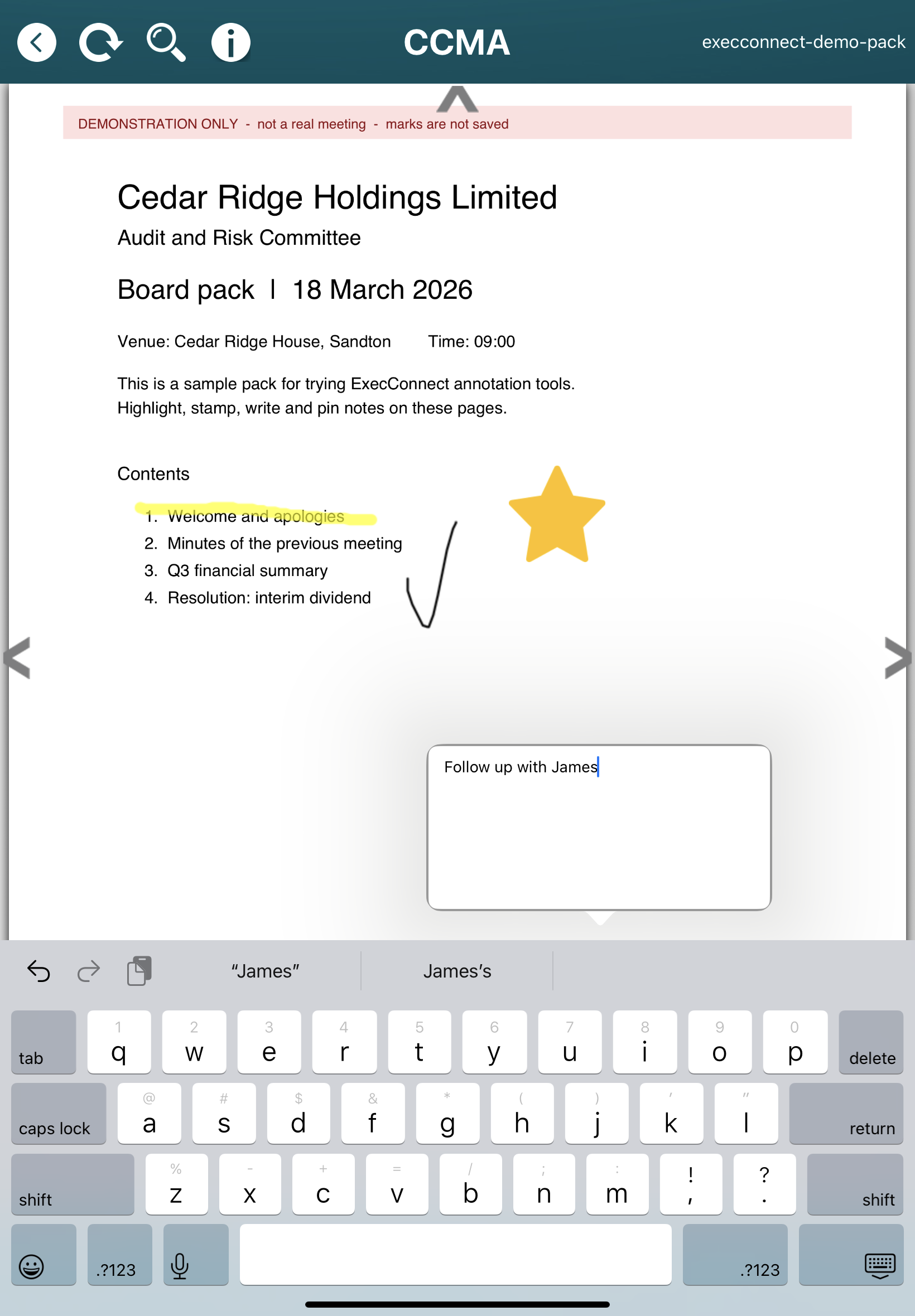
The demo above is the web viewer. In the meeting, most participants use the iPad app: the same pack, and the same stamps, sticky notes, pen and highlighter, including offline when the venue has no network.
Annotations are private to each participant. Marks you add on iPad are the same ones you see on the web, and the other way around. How the iPad app fits the meeting
Administrators issue the pack. Participants open it in the viewer and add their own marks. You are not maintaining a second comments spreadsheet alongside the agenda. Zoom and page changes keep marks aligned with the PDF, so a note added at the bottom of a page does not jump off the document when someone else opens it.